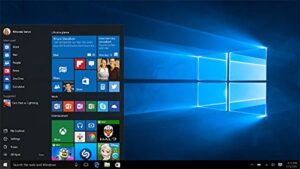
All we want our PC to be personalize as per imagination in our mind. We want to keep desktop wallpaper having travel images, car images, friends, family, God and finally as per wish list. We can customize the same in Windows 10, which can feel to have more personalize.
Today we will show you how to personalize in Windows 10.
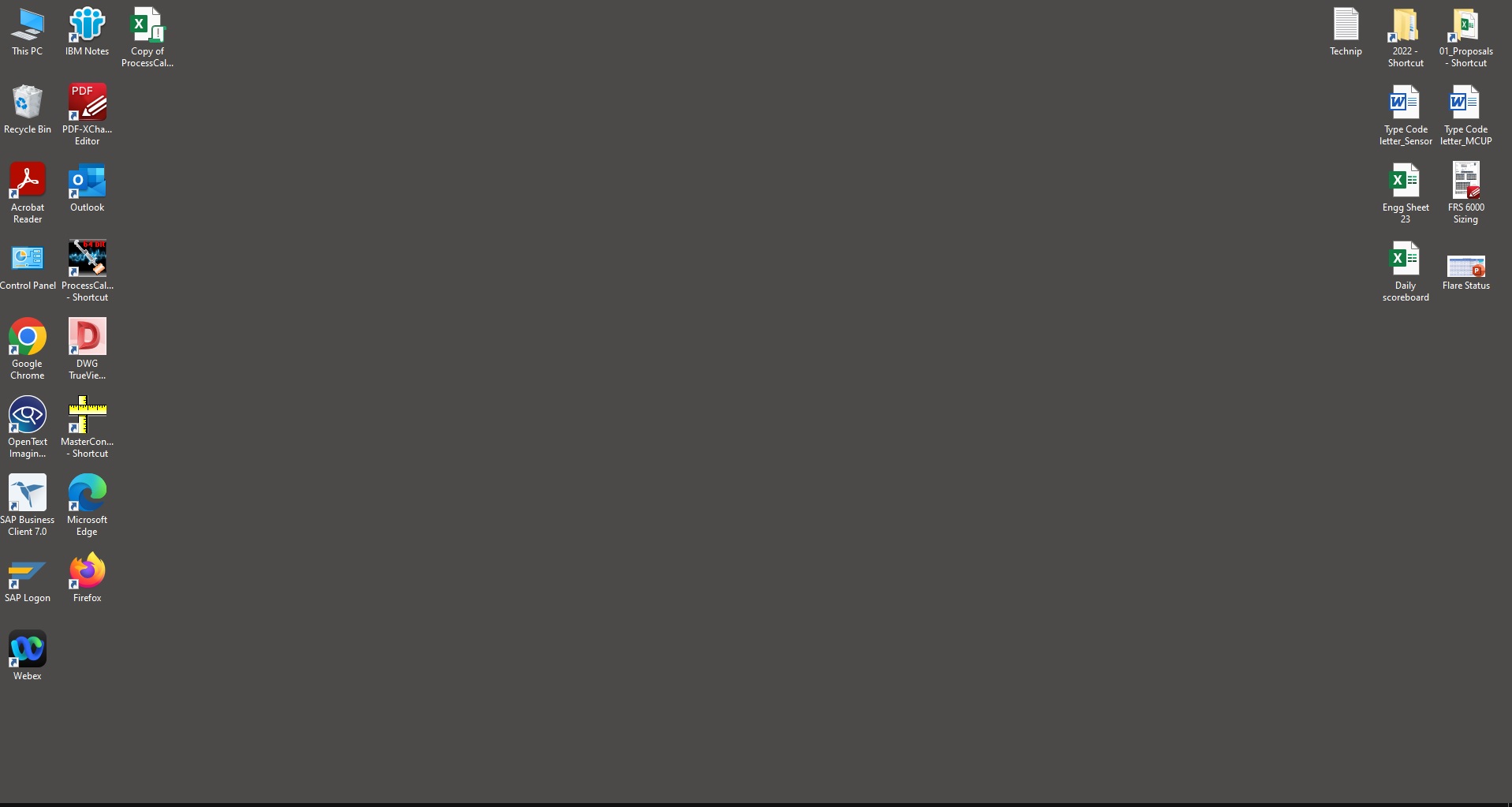


1. Personalise Desktop Background
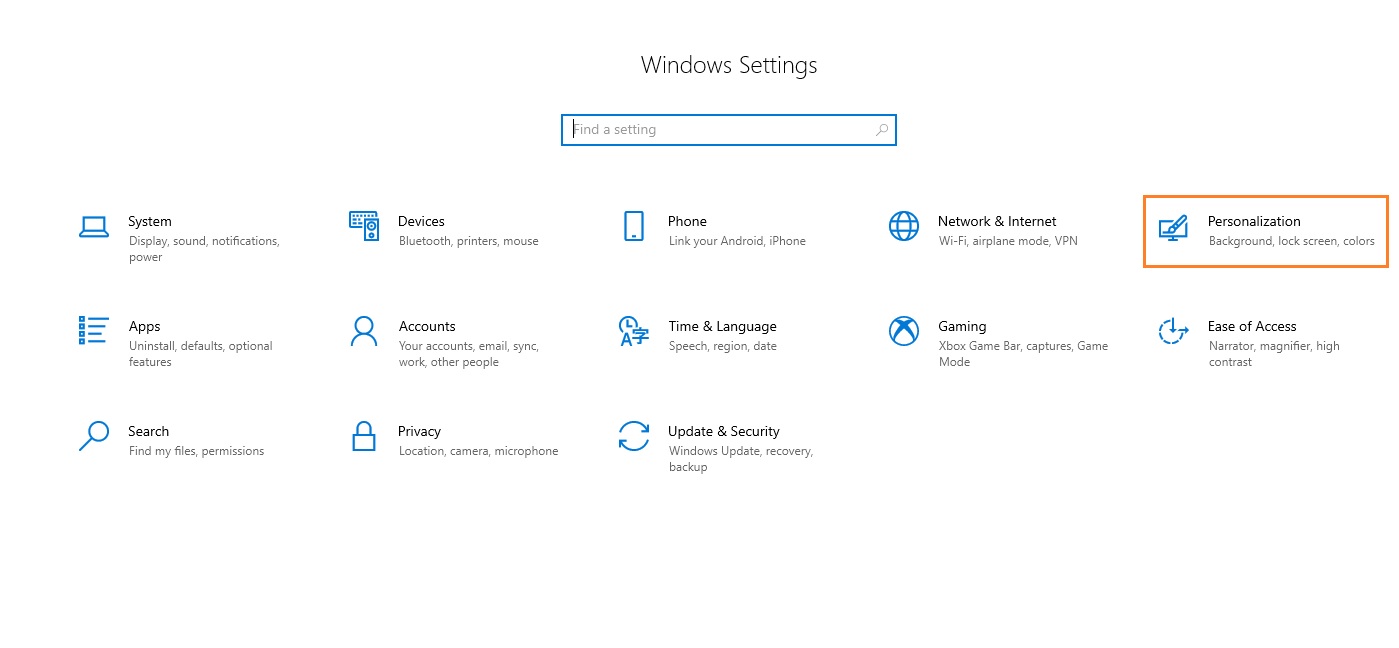
Open Settings from Control Panel and click on personalization or you can Right click on the desktop screen and click on personalize.
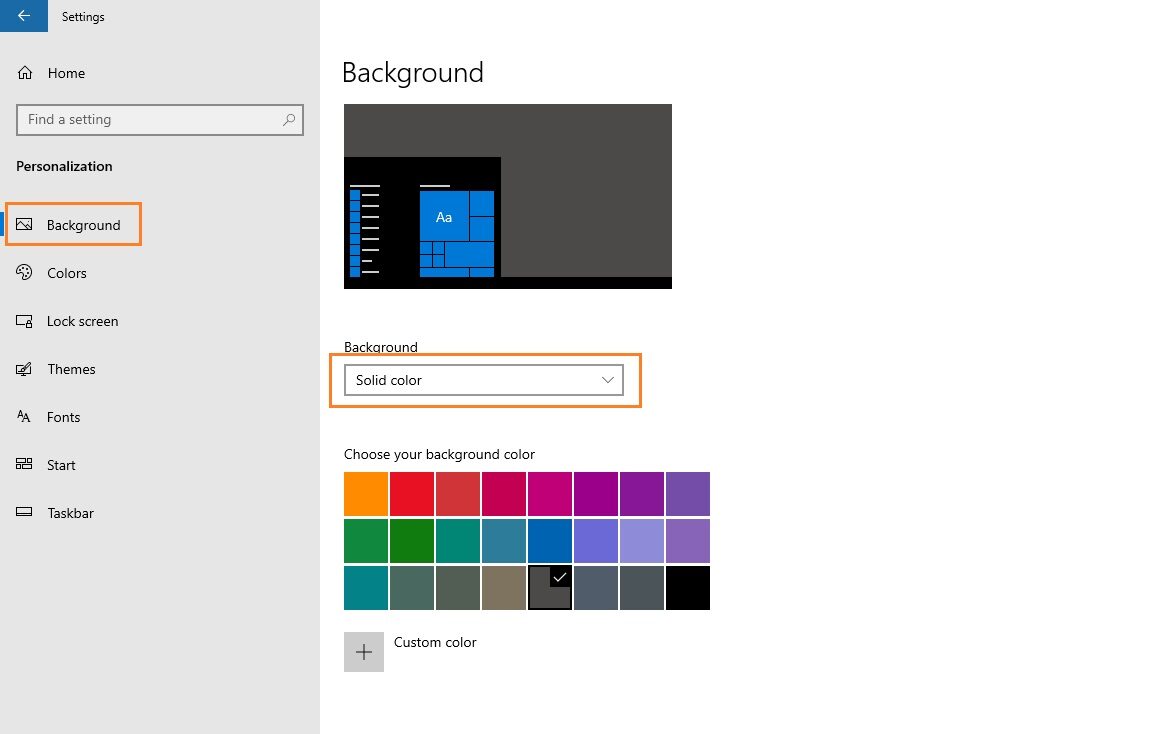
In the personalization window, click on Background. In the background drop down menu, select the slide show or picture what you would like love to have.
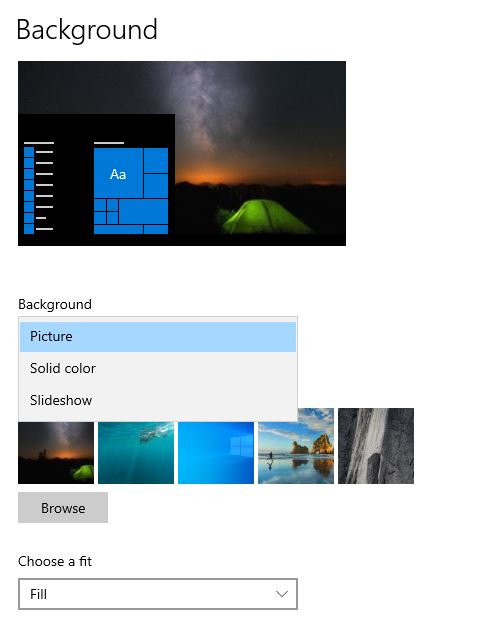


If you select picture, default windows picture available for selection. You can select the same or else you can click on browse and select the picture you want to keep for the desktop background.
If you select slideshow, it will ask to choose the folder from which you want to show the picture. click on the browse and select the folder you want to choose to display the folder.
After selecting the picture, you click on the choose a fit drop down menu, which is having options as. I would advise to you use Fill option, as it cover the entire screen.
- Fill
- Fit
- Strech
- center
- span
Once you have with all the steps, the desktop wallpaper will show the picture which you have selected.
2. Change accent Colour in Windows 10
We can also change of accent Colour of taskbar, start, action center, apps and settings in Windows 10.
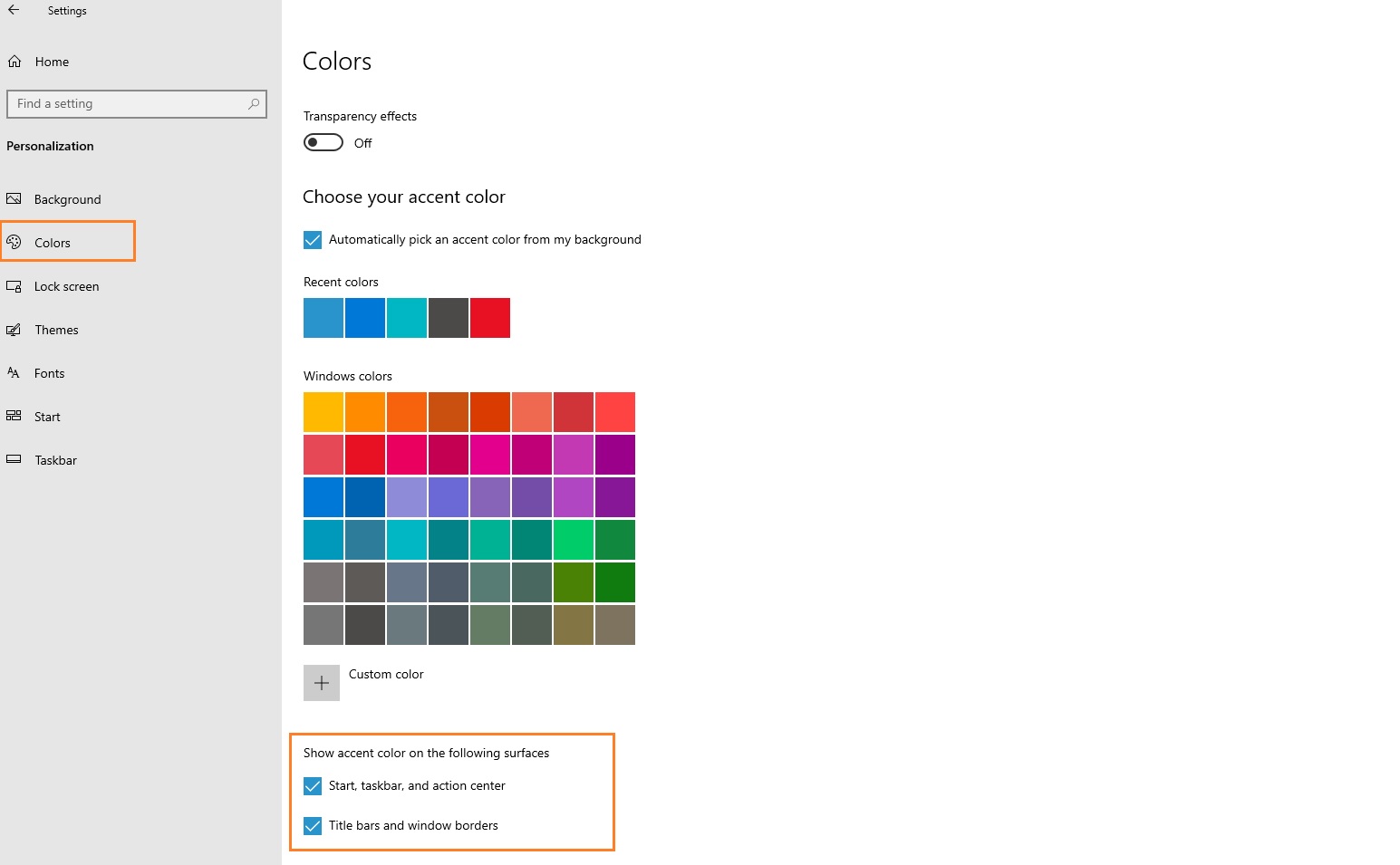
Open settings, Click on personalization and click on colors. Select your favorite color from the window. You can pick an accent color from my background, if you wish windows to select Colour change as per your desktop background.
3. Dark Mode & Light mode in Windows 10
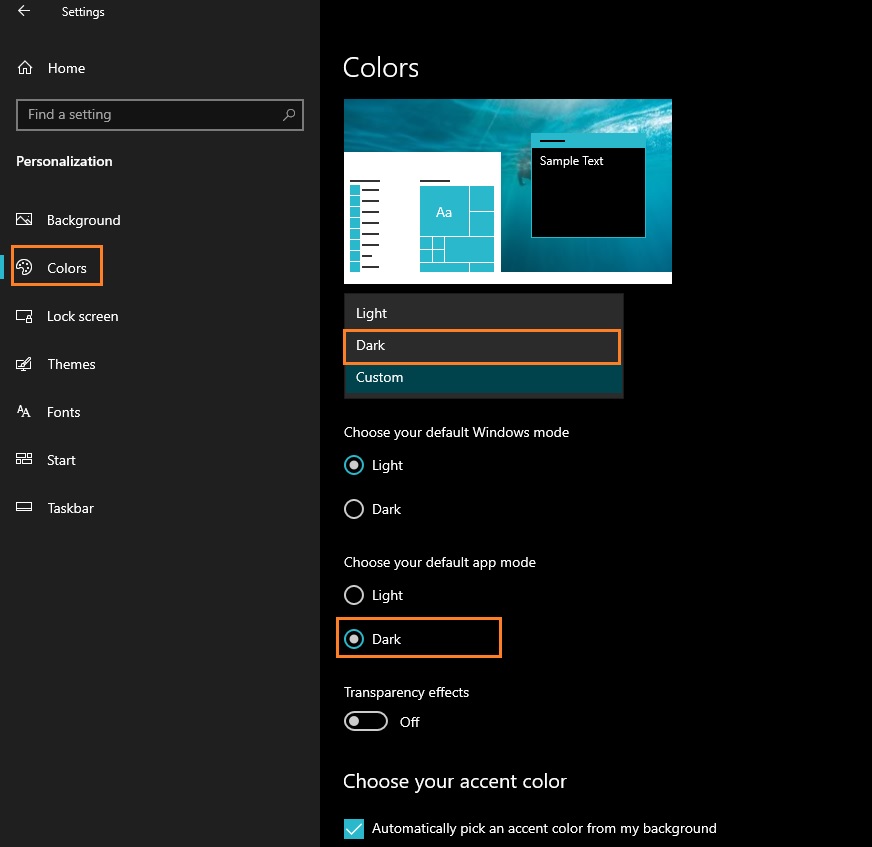
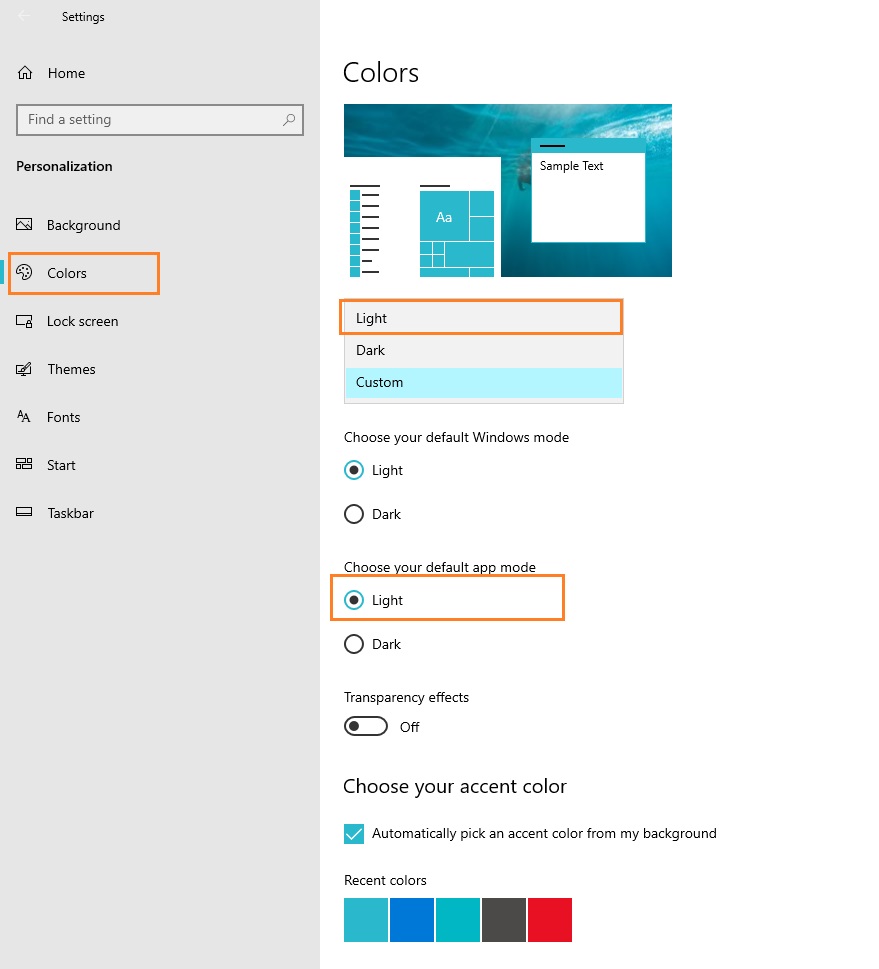
Open settings, Click on personalization and click on colors. You have drop down selection for dark mode or light mode.


4. Transparency Effect in Windows 10
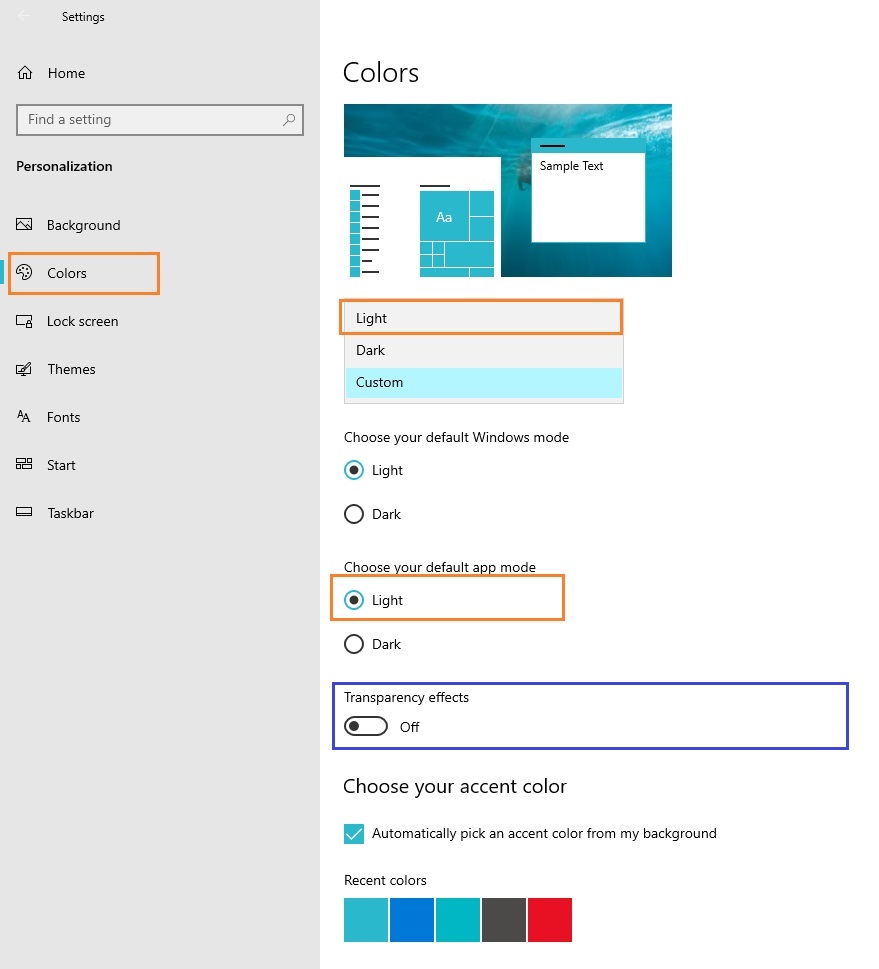
Open settings, Click on personalization and click on colors. You can slide the Transparency effects off or on. Once you click on the same, transparency will be as per windows default.
5. Custom Image on Lock Screen in Windows 10
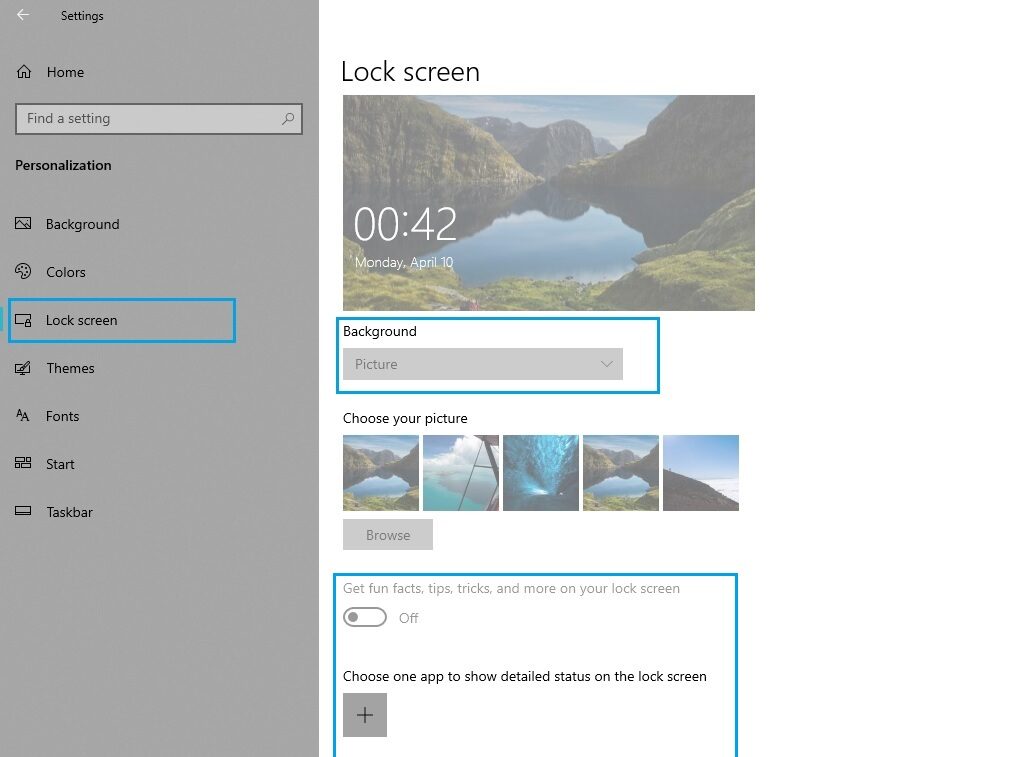
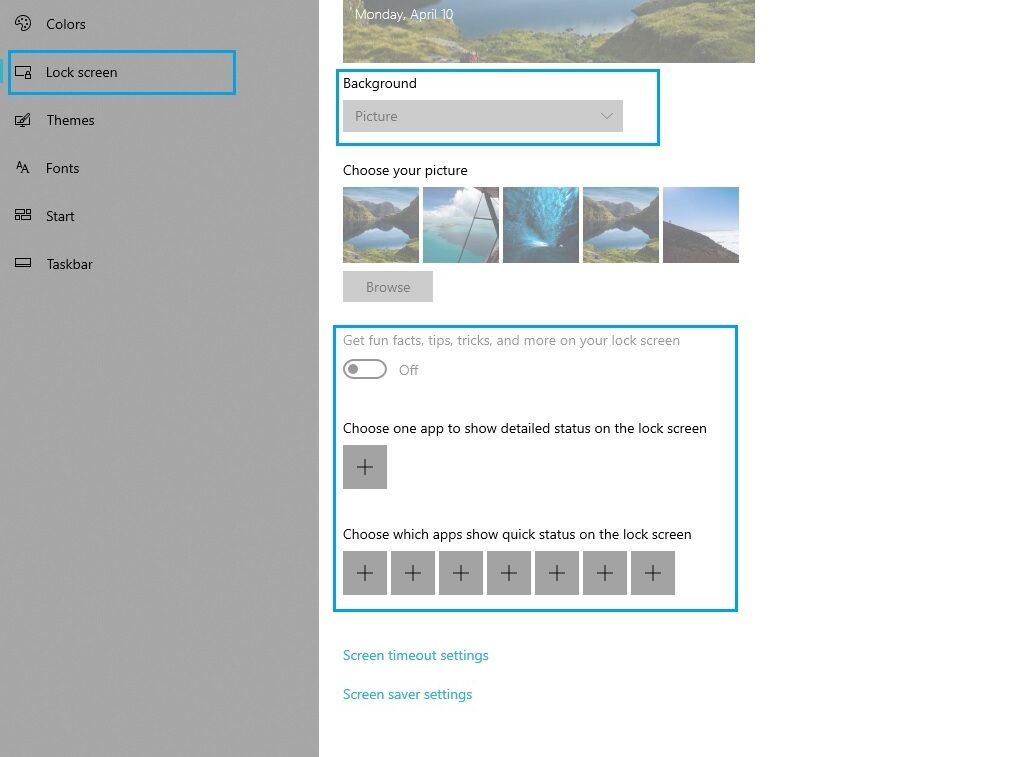
Open settings, Click on personalization and click on Lock Screen. Use background drop down menu and select picture.
You can also select slide show option and browse the folder from which you want to show the pictures in the background.
you have options : Turn off the Get fun facts, tips, tricks, and more on your lock screen.
6. App Notification in Lock screen
Open settings, Click on personalization and click on Lock Screen. You can click on the + sign and select the app like outlook. You can add 7 apps to show the status in the Lock screen.
7. Change Theme in Windows 10
Open settings, Click on personalization and click on Themes.
Click on get more themes from Microsoft store. Get the theme you want and click the Get Button.
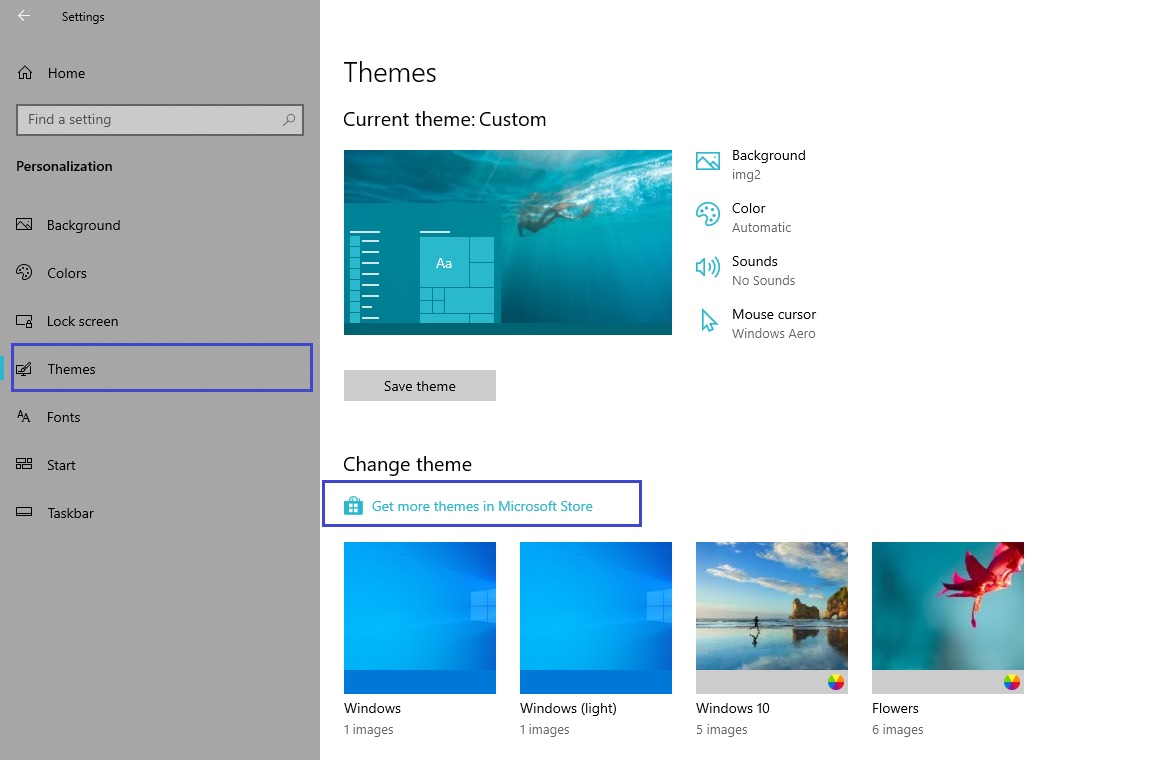
Once you complete the steps, the theme will apply and update the background with a collection of images and custom accent color
8. Start Menu settings in Windows 10
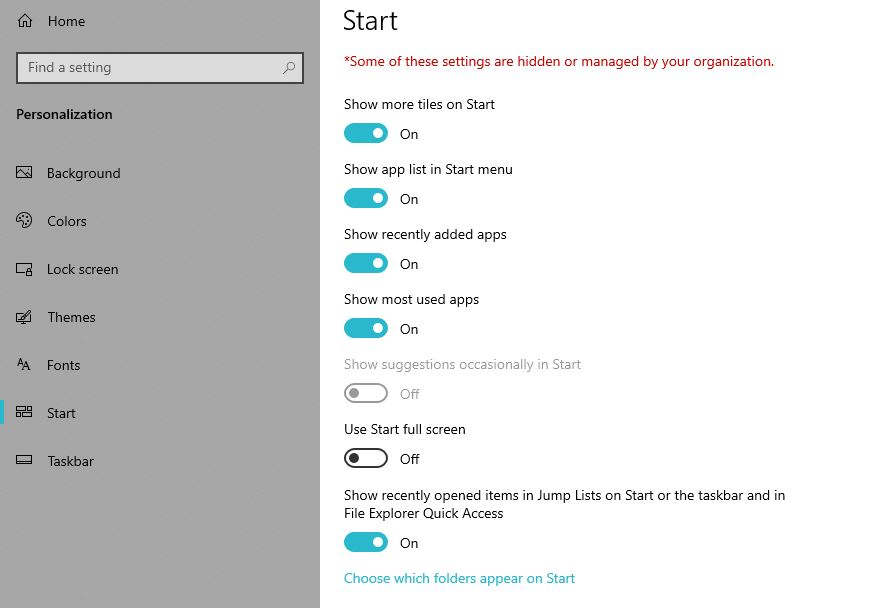
Open settings, Click on personalization and click on start.
The Start page includes several options you can customize, including:
- Show more tiles on Start — Allows you to add a fourth column of tiles to fit up to 8 (small) tiles in a single row.
- Show app list in Start menu — Disabling this option will remove the all apps list with only access to your pinned Live Tiles. You can continue to access the apps clicking the All apps button on the top-left, or typing a search as you open the menu.
- Show recently added apps — If you’re not interested in seeing the “Recently added” list, you can turn off this option.
- Show most used apps — The Start menu lists your more frequently used apps, but you can disable this option if you only want to see all the apps.
- Occasionally show suggestions in Start — You can disable this option to prevent seeing recommendations from the Microsoft Store.
- Use full screen — Enables a Windows 8.1 Start screen-like experience to stretch the menu across the desktop, allowing you to see more pinned tiles without scrolling.