Personal computer’s or Laptops have only C drive sometimes and other partition are not provided these days. If you have only C drive on your PC then you must create partition from C drive. There are benefits by doing different partition such as ;
C Drive
(a) Data like software, images, videos, backup etc. can be stored in different partition, as we know C drive is primary partition to run the Windows and other programs.
(b) Less disc Fragmentation.
(c) We can format C Drive whenever we want to install the fresh Windows or upgrade it without hesitation, as our data is safe in other partition.
(d) Steady system performance as C drive contains only Windows file and program files.
Guide to create partition
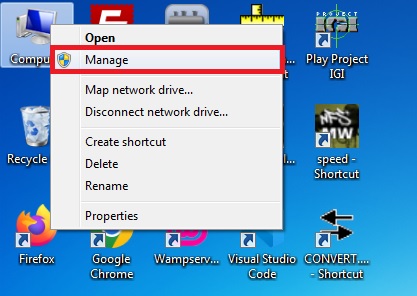
Step 1 : Right Click on my computer icon on desktop and click on manage. Computer magament window will get opened up.
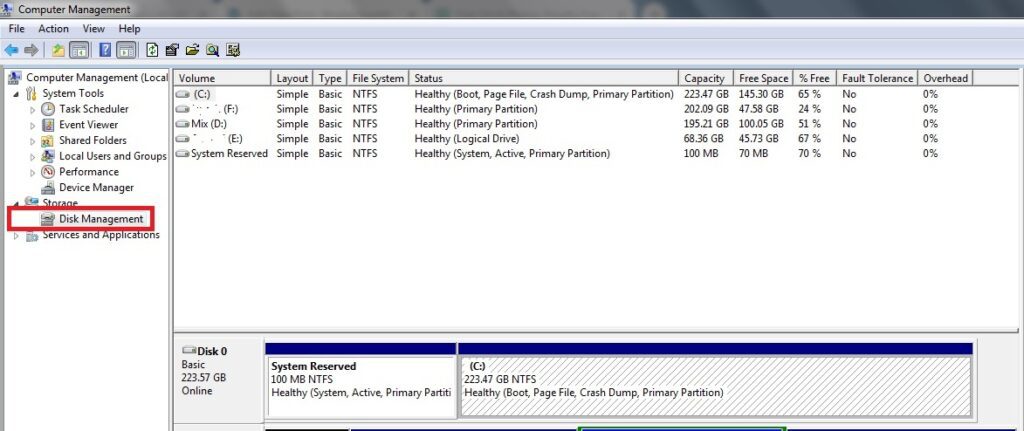
Step 2 : In computer management window, select disk management.


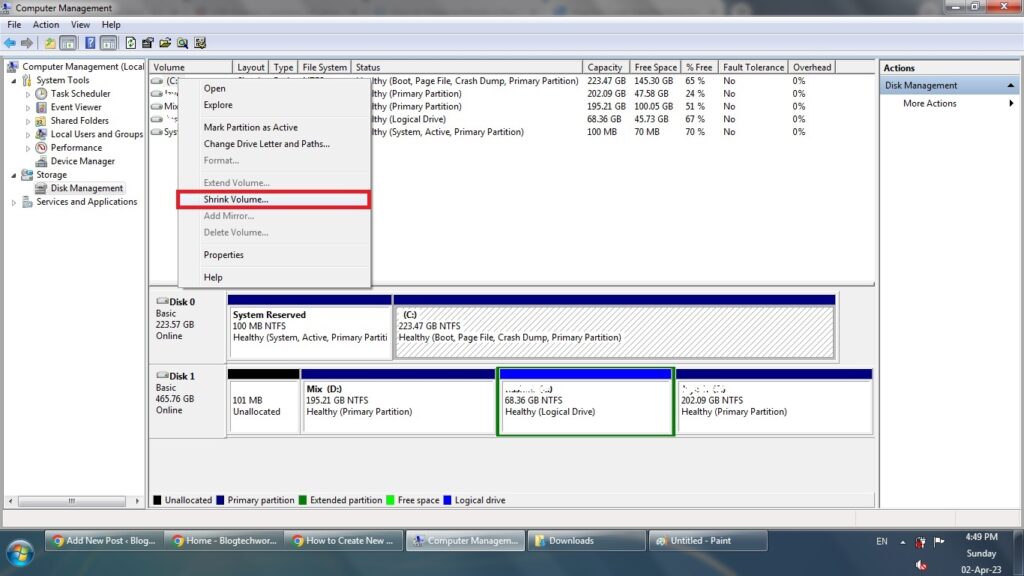
Step 3 : Right Click on C Drive and Press Shrink
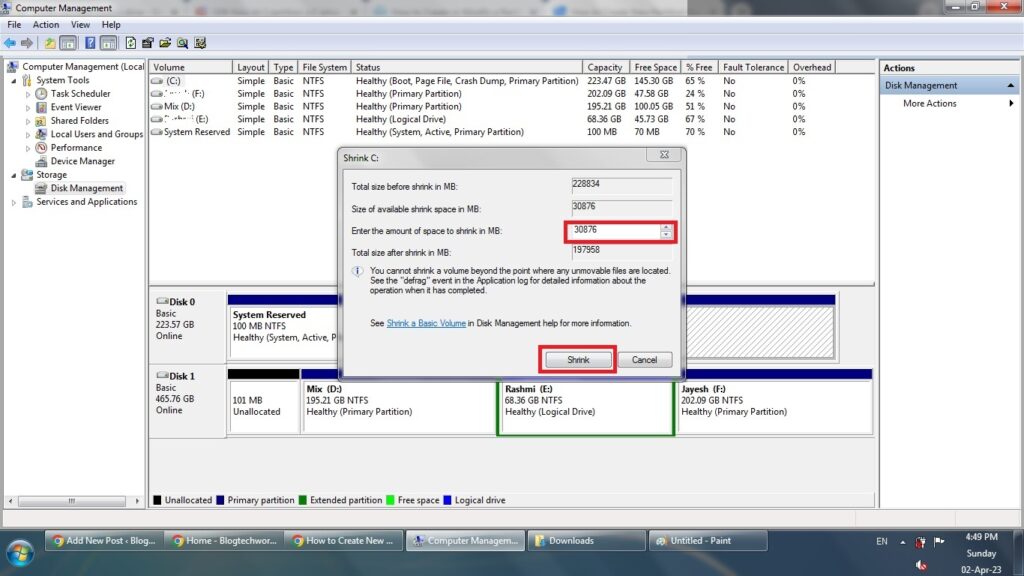
Step 4 : Shrink Process will be done and available space shall be provided to create the partition. Enter the new value partition in MB in window as shown below and press shrink.
Step 5 : Unallocated partition will be created. Right click on the Unallocated partition and press create simple volume and press new simple volume wizard and then press next. Enter the size and drive letter for the new volume creation.
Select Format and that’s all New partition in created.
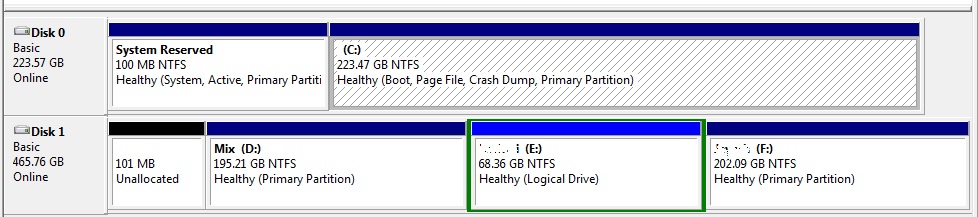
You can created require partition based on your use. Like i have divided 500 GB partition in Disk 1 as below :