VLC is a free media player developed by the Video LAN project and can be installed into Windows, Linus and Mac OS operating system and now it is available for Android Mobile platform. With the help of VLC you can play your local video files and also you can stream YouTube videos directly from the link. The player have built-in plugins to stream YouTube videos and it also supports many audio and video formats. You can download this media player from App Store, Microsoft store, Google Play or directly searching from google.

Many of them are facing issues and not able to stream the YouTube videos and getting error ” VLC is unable to open the you Tube link”. Today we will lean how to resolve this issue with the following solutions :
Sol 1 : VLC latest version
Many of us are not updating software on regularly basis and due to which VLC may not updated and you are using the order version of VLC. Kindly update the VLC media player and check if the issue is resolved or not. You can update the VLC from the https://www.videolan.org/vlc/
Sol 2 : Replace Youtube.lua File
Download youtube.lua file from the VLC download link https://code.videolan.org/videolan/vlc/-/raw/master/share/lua/playlist/youtube.lua?inline=false
Open Windows explorer by pressing Windows + E keys together and copy paste the downloaded file to
C:\Program Files\VideoLAN\VLC\lua\playlist. Image shown below.
Computer will ask to replace the old file. Just Click on Yes to replace the old file with the downloaded file.
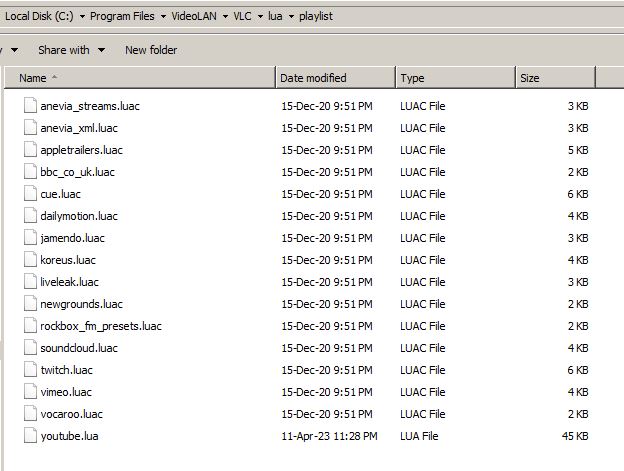
Now check if the issue is resolved or not by entering YouTube url file for playing.
Sol 3 : Cookies forwarding setting Disable
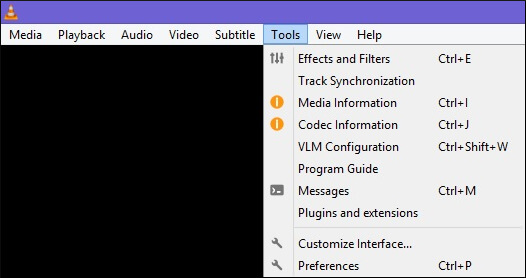
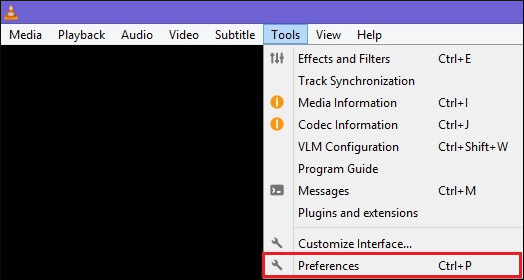
Open VLC media Player and click on the Tools option from the Player Top menu and Choose Preferences Options.
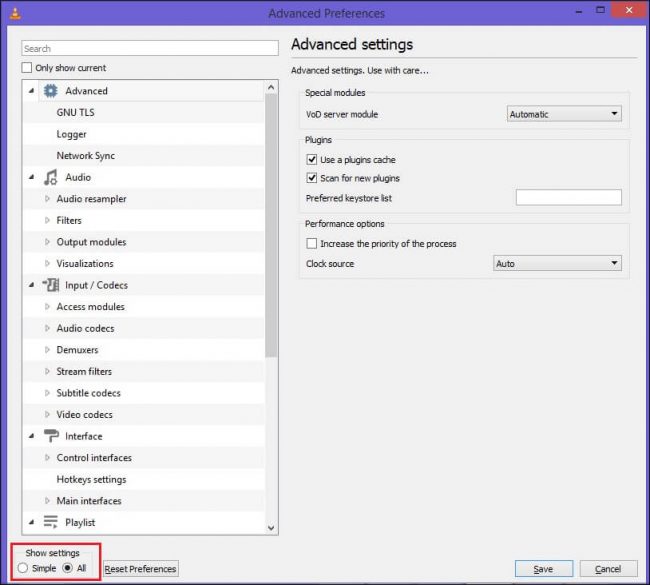
A windows will now appear on the screen. You need to change the show settings options from Simple to All available at the bottom left corner of window.
Double Click on the Access Modules option in the input / codecs.
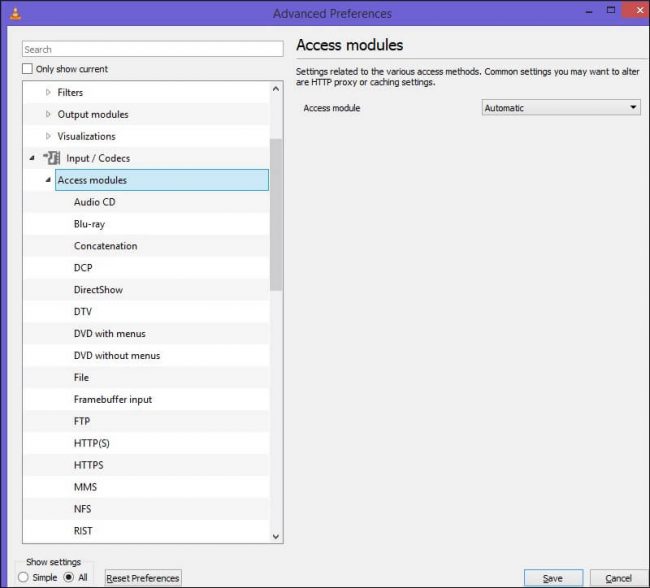
After that, click on the HTTPS and untick the cookies forwarding.
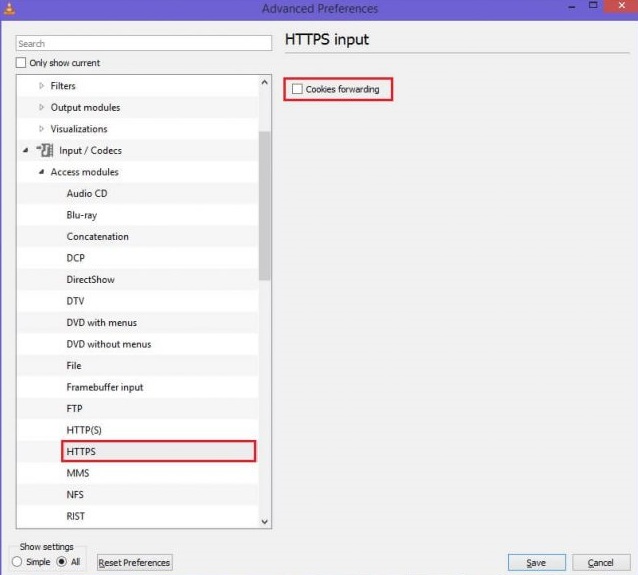
save the change by Clicking on save button.
Now check once again if the issue is resolved or not.
Sol 4 : Hardware-accelerated Decoding Disable
Open VLC media Player and click on the Tools option from the Player Top menu and Choose Preferences Options.
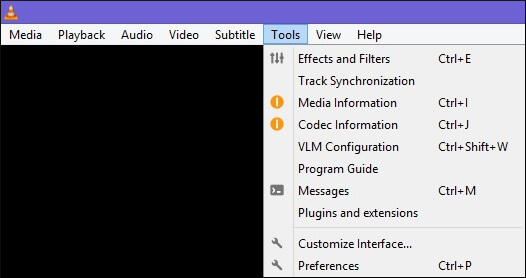
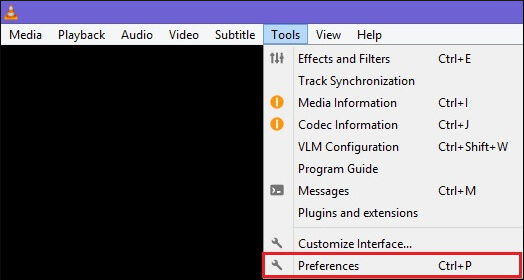
Click on the Input/Codec tab from the top menu
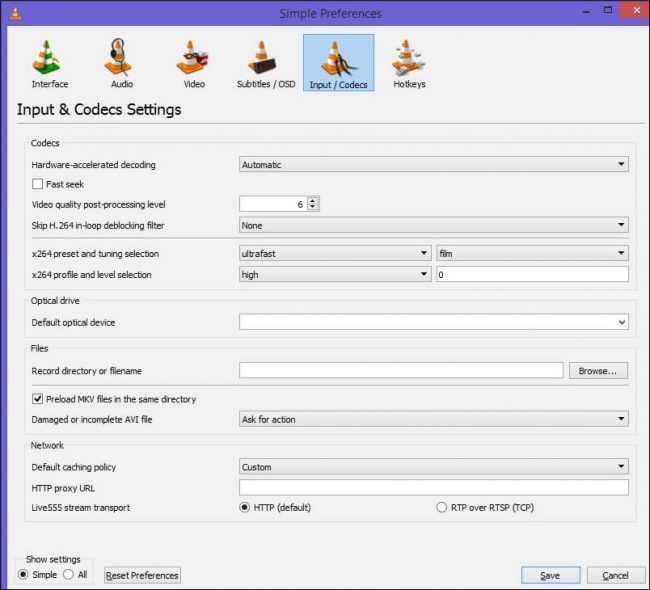
Disable the hardware accelerating decoding by changing its setting from Automatic to Disable. See below image under the codec section of VLC Window.
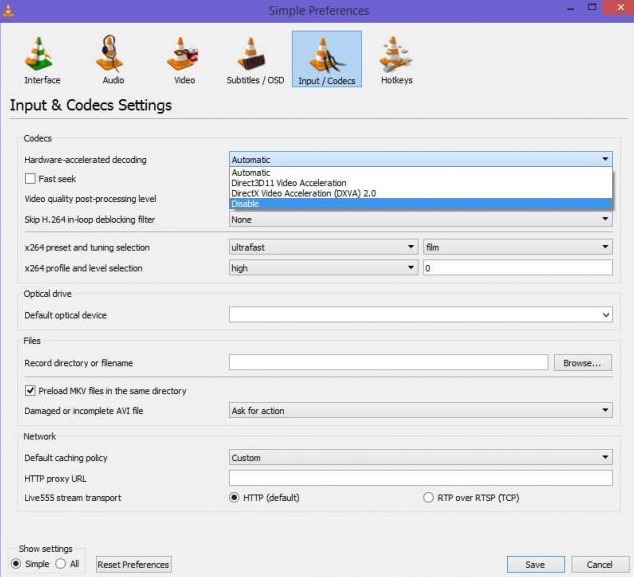
save the change by Clicking on save button and check once again if the issue is resolved or not.
Sol 5 : Increase File Caching & Network Caching Values
Open VLC media Player and click on the Tools option from the Player Top menu and Choose Preferences Options.
A windows will now appear on the screen. You need to change the show settings options from Simple to All available at the bottom left corner of window.
Click on Input /Codec list on the left panel of the window. After that Scroll down on the right panel of the window and change Network caching value to 1500 and File caching value to 2000.
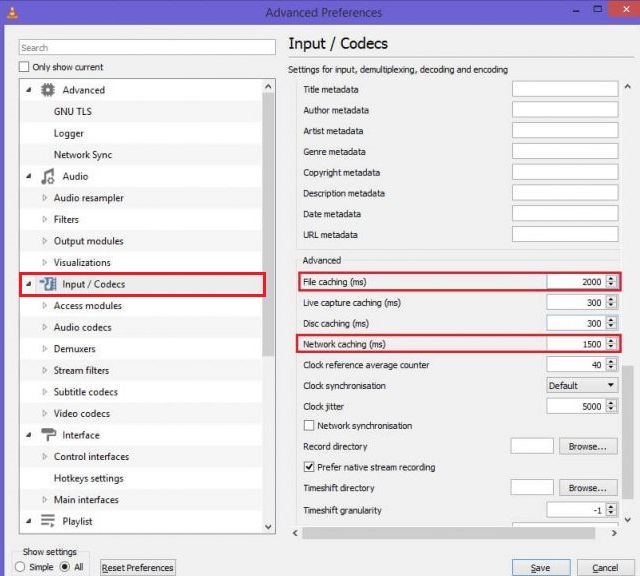
save the change by Clicking on save button.
That’s All. With this above 5 Solution, You Tube Video will be able to start paying in VLC Player. Enjoy !!!