Windows 7 hides important files and folder from system user in order to keep the system files safe from modifying or from deleting by the user and protecting from subsequent damages to system. Follow below steps to acsess hidden folder or files in the windows 7.



Access to Hidden Folder – 1st Way
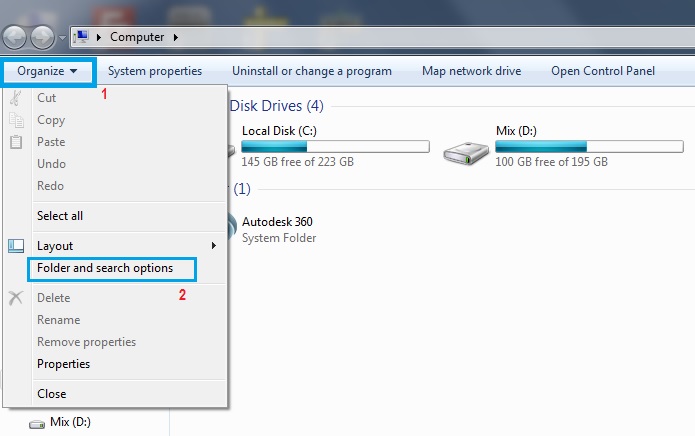
Click on my computer icon on the desktop and after computer is opened up, click on Organise button on left hand side of windows screen and then press on folder and search options.


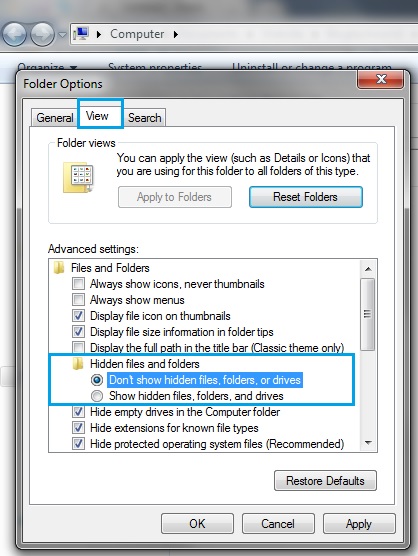
After pressing Folder & search option, Folder option window will open. Click on view tab and you can see Hidden files and Folder. By default the setting is marked on Don’t show hidden files, folder or, drives.
Just click on Show hidden files, folders and drives. That’s all now you have access to hidden files and folders which are earlier hidden in the system.
Access to Hidden Folder – 2nd Way
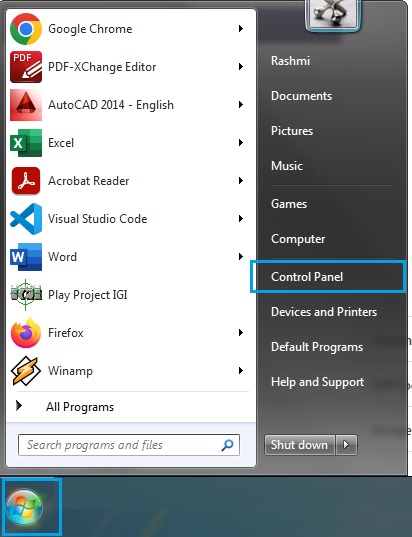
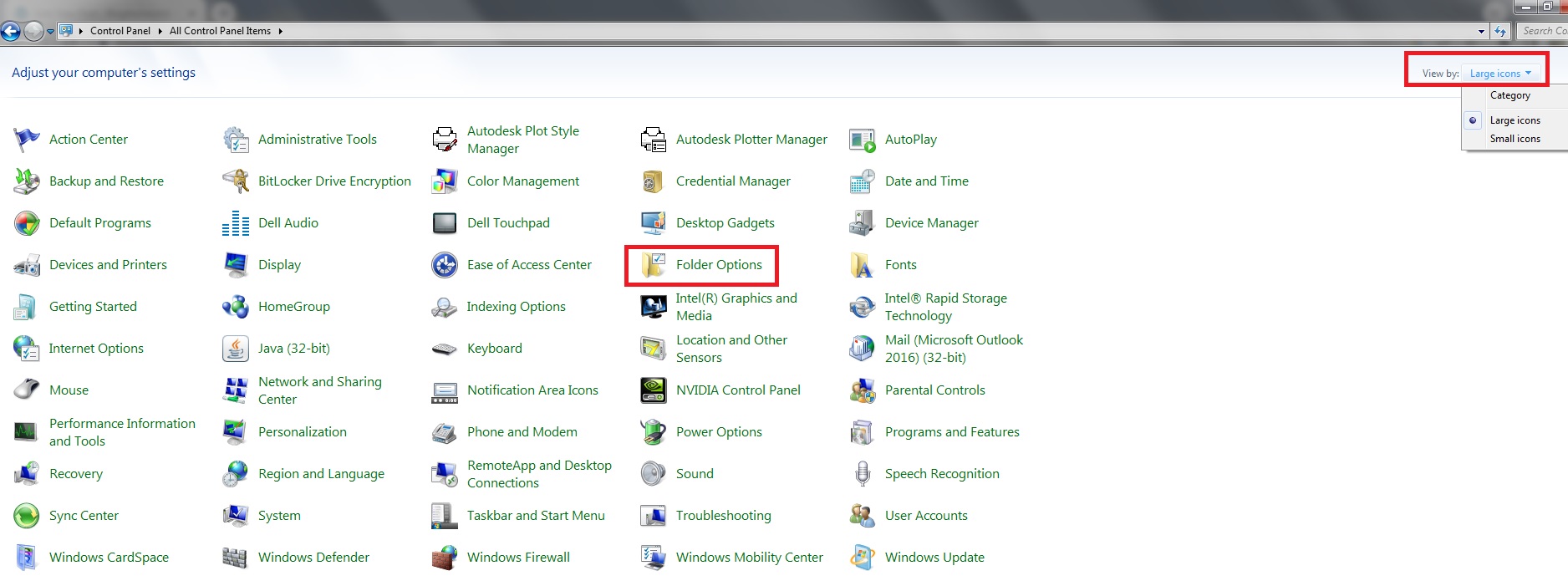
Click on Windows button and then click on control panel. Also you can click on control panel icon from Desktop.
Once control panel window gets opened, click on Folder Options. Folder Option window will open and again you need to repeat the steps as perform in 1st way. I.e. You need to click on view tab and click on show hidden files, folders and drives. if you are unable to see above window, then click on view by and select large icons instead of category.
You can hide your personal information or confidential files hidden with this method so that other people cannot see the confidential files.