Administrator account is by default disable in Windows 10 & 11 computer or laptop we buy from market as on date. You need to enable the administrator account to get the full privileges.

Understand Administrator Account in Windows
Administrator account in windows have full access to install the software, can do change’s in the security setting and have access to all the files or folders and can create or delete the user account as well. The account have all the rights to make the necessary changes as and when require.




Steps to Enable Administrator Account
Command Prompt method is the simplest way to activate the Administrator account. Follow below steps as shown to enable the same.
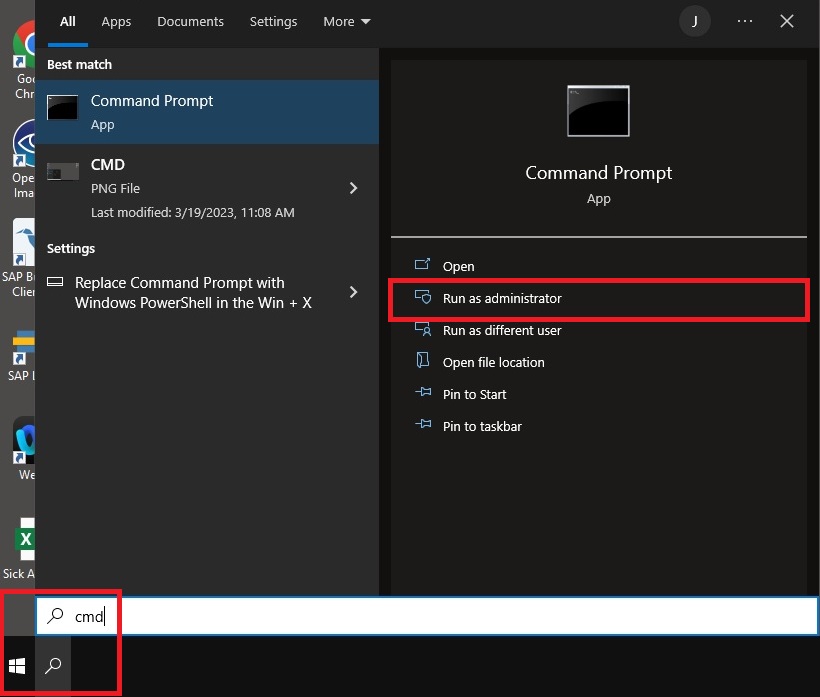
Step 1 : Type CMD in the search icon near Windows Icon as shown and then press run as administrator.

Step 2 : Command prompt window will open and you need to type net user administrator /active : yes
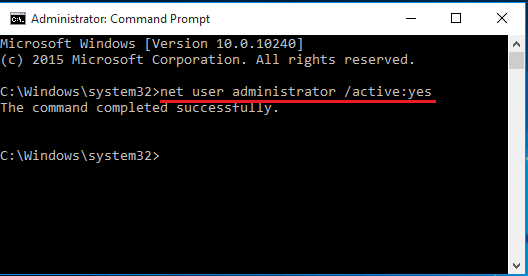
Administrator account is activated successfully.
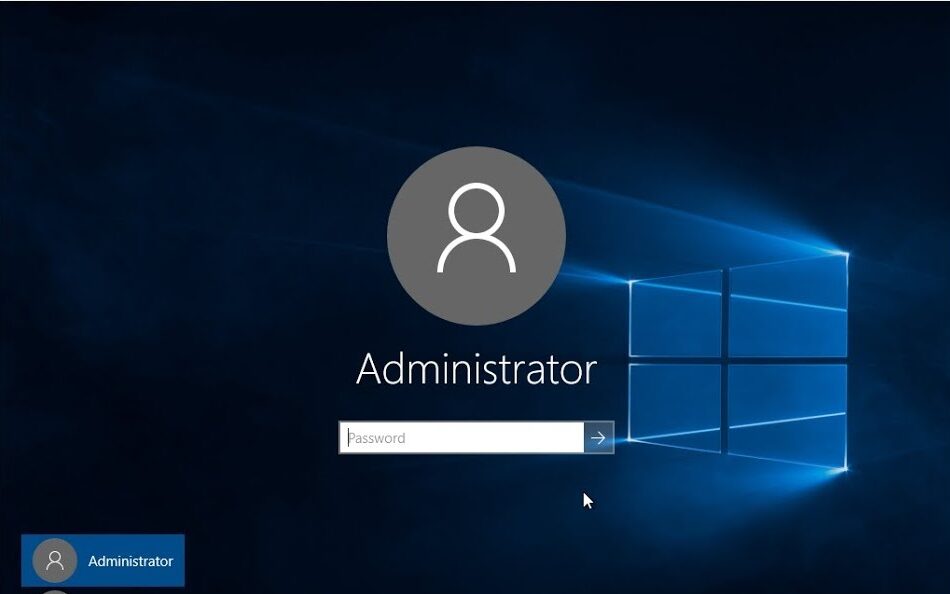
Click on the start command and you can see the Administrator account. The account is not password protected just click on the arrow to logon into the account.
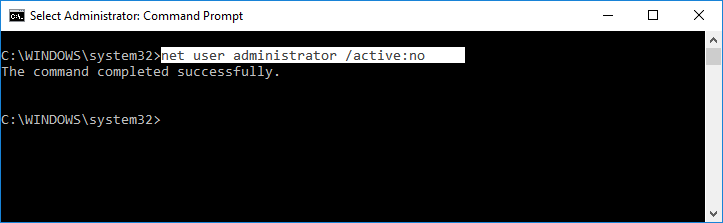
Step 3 : To deactivate the Administrator account, just follow step 2 and type net user administrator /active : no
Remark :- You should always deactivate Administrator account once the purpose of work is completed. Account shall be access by responsible person only to avoid any unwanted changes or file deletion which may lead in mess of the system.